
Qinglong Panel Automatic Check-in
Deploy the Qinglong panel with Docker to automate check-ins

1. Set Up the Qinglong Panel
Deploy with Docker Compose
services:
web:
image: whyour/qinglong:latest # Debian-based version: whyour/qinglong:debian
volumes:

- ./data:/ql/data
  ports:
- "5700:5700"
  environment:
  QlBaseUrl: '/' # Base path is optional; must start and end with a slash, e.g. /test/
  restart: unless-stopped
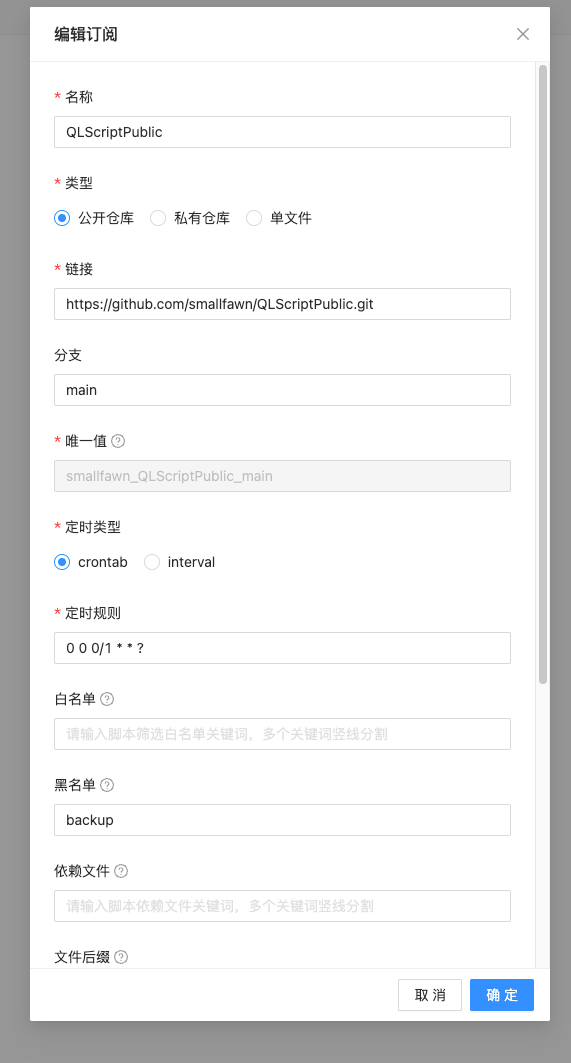
2. Configure Scripts
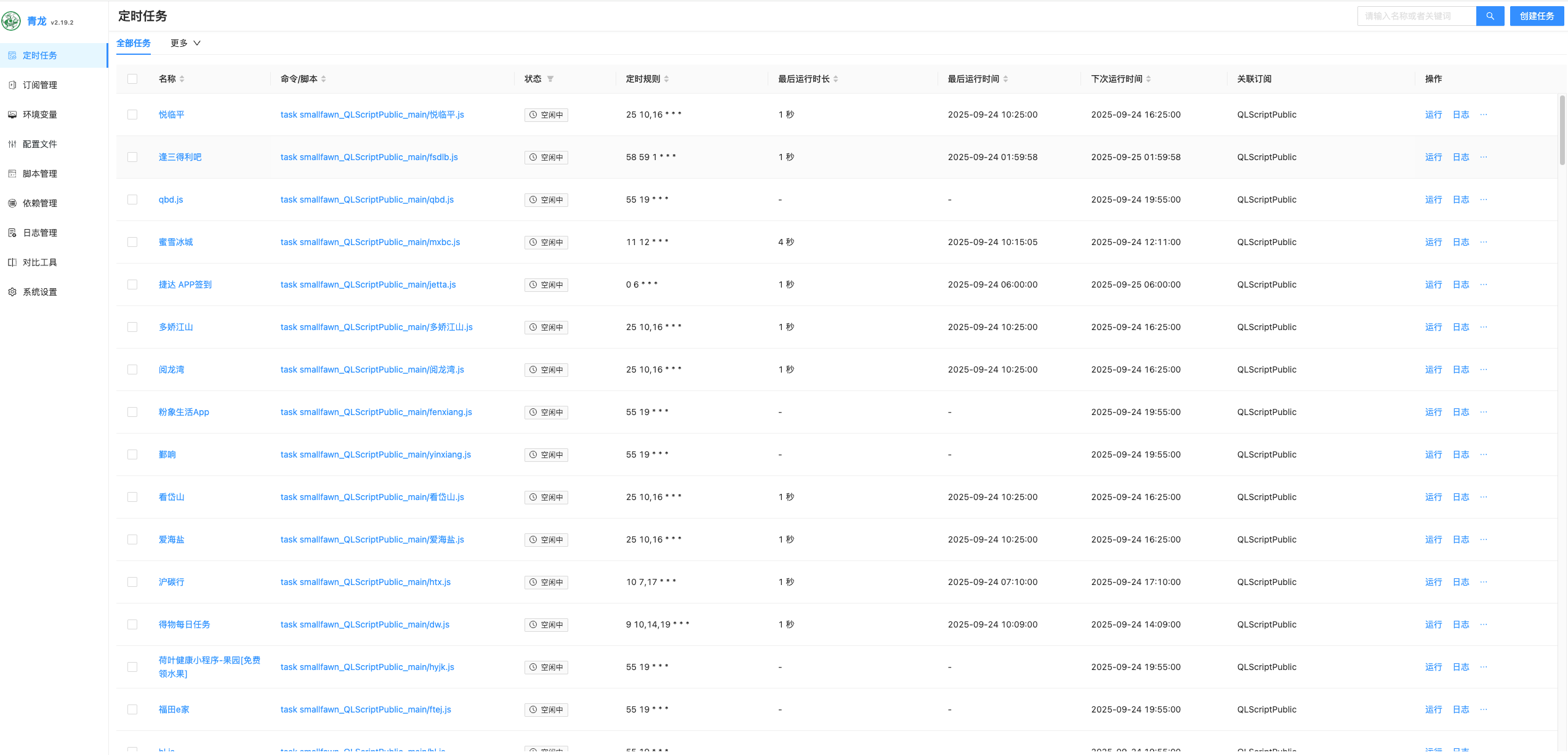
After configuration succeeds, you can see the scheduled tasks
3. Configure Environment Variables
Once you open a script, you’ll find that it needs environment variables configured
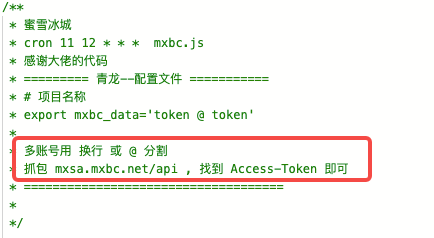
At this point we need a packet-capture tool to get the token
Choose proxypin Other tools work too
On first use you need to install a certificate
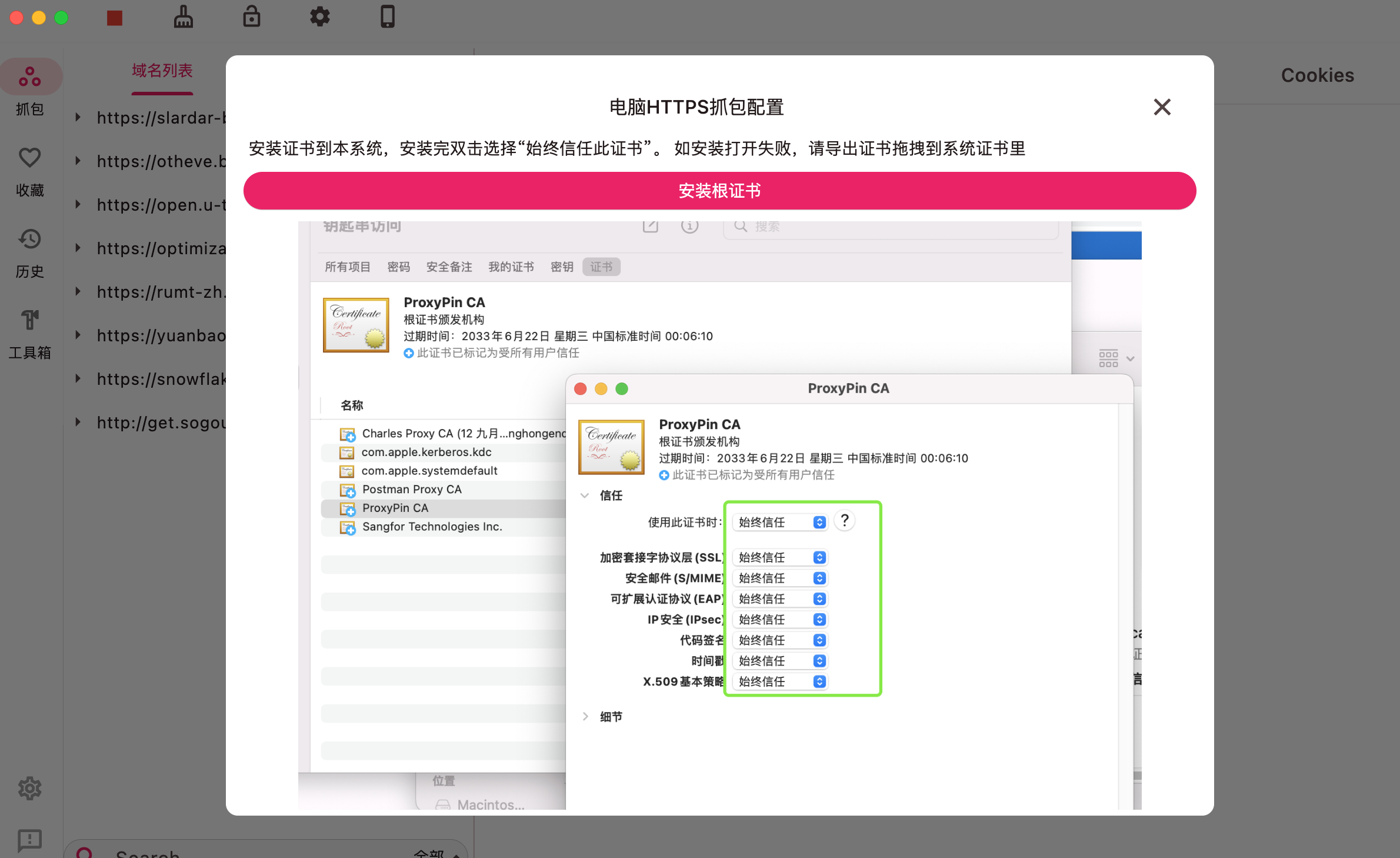
Once configured, enable HTTPS capture and grab the required token
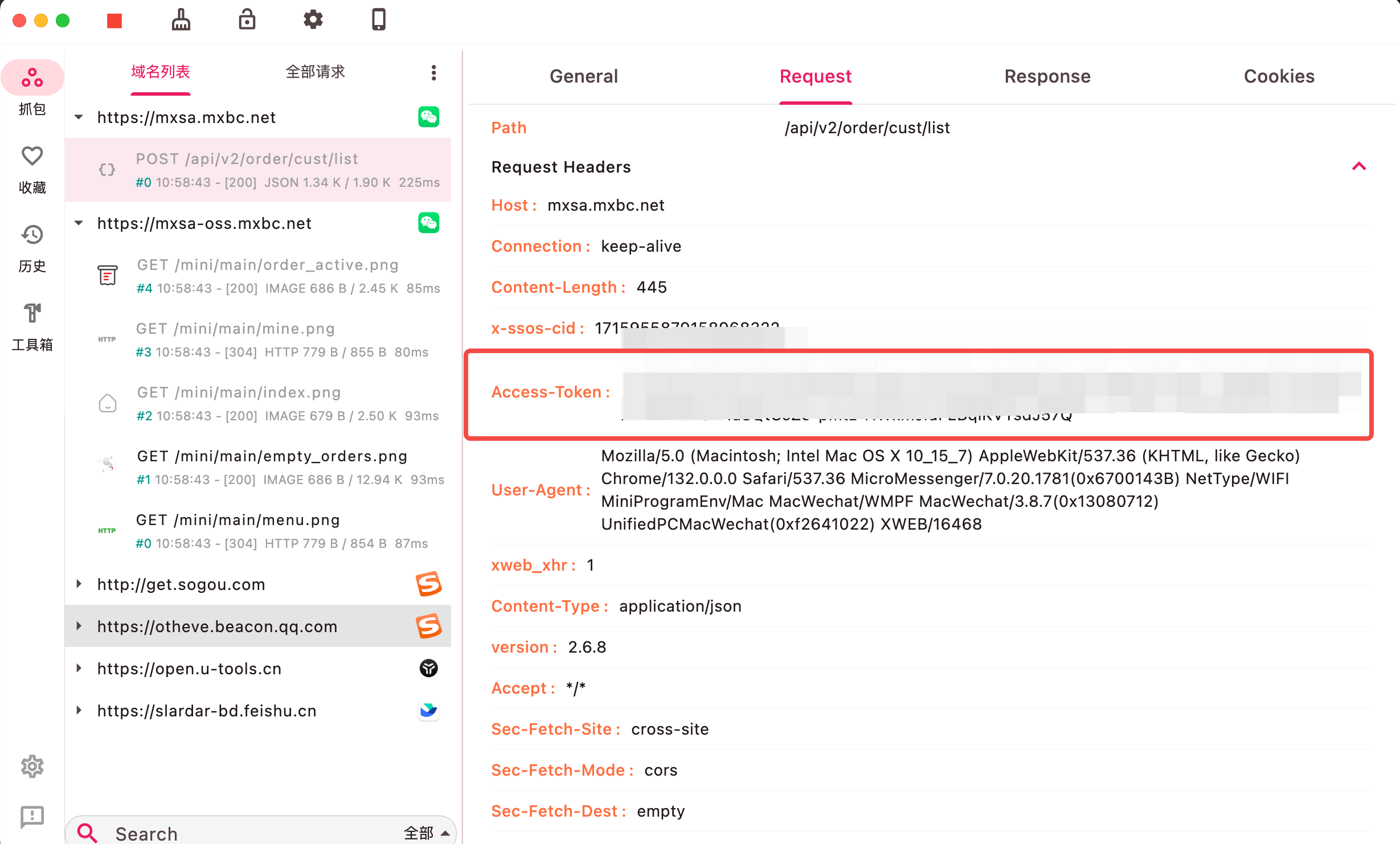
Open the environment variables menu, click the create variable button, and paste in the captured token
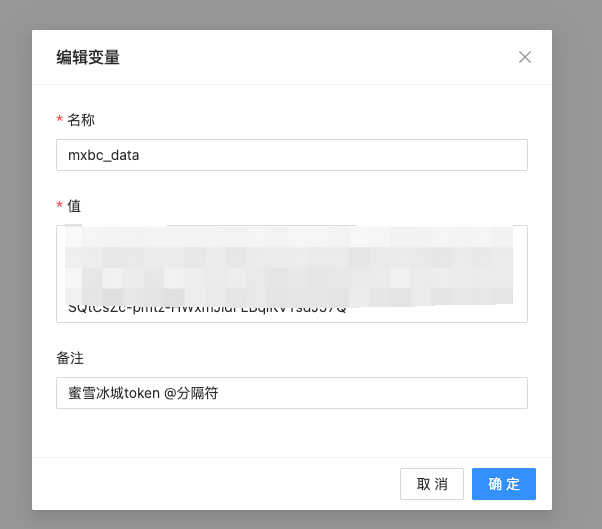
4. Configure Dependencies
Run the script task and check its logs; when a missing dependency appears, add it manually
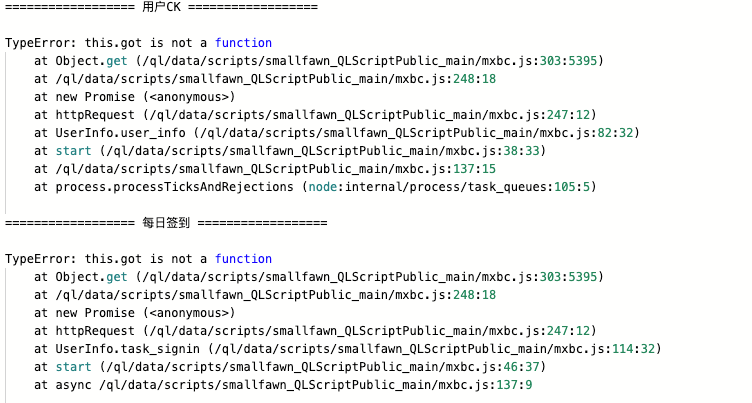
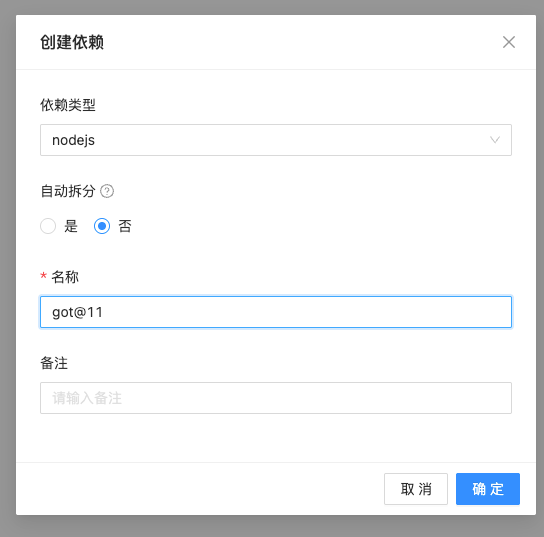
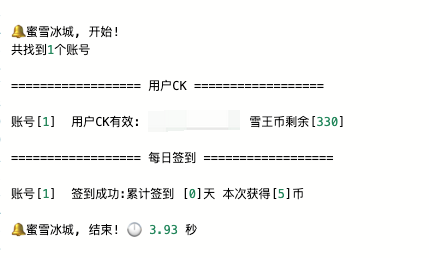
until it finally runs successfully
Comments