
CalmBar 2.6: fourteen small macOS utilities in one menu bar panel
CalmBar is a macOS utility suite that lives in the menu bar. Version 2.6.1 covers fan and thermal control, a charge limit, per-app audio, screen recording, AI translation, launch item management and developer cache cleanup — fourteen features, written in Swift 6, with no network traffic except the updater.
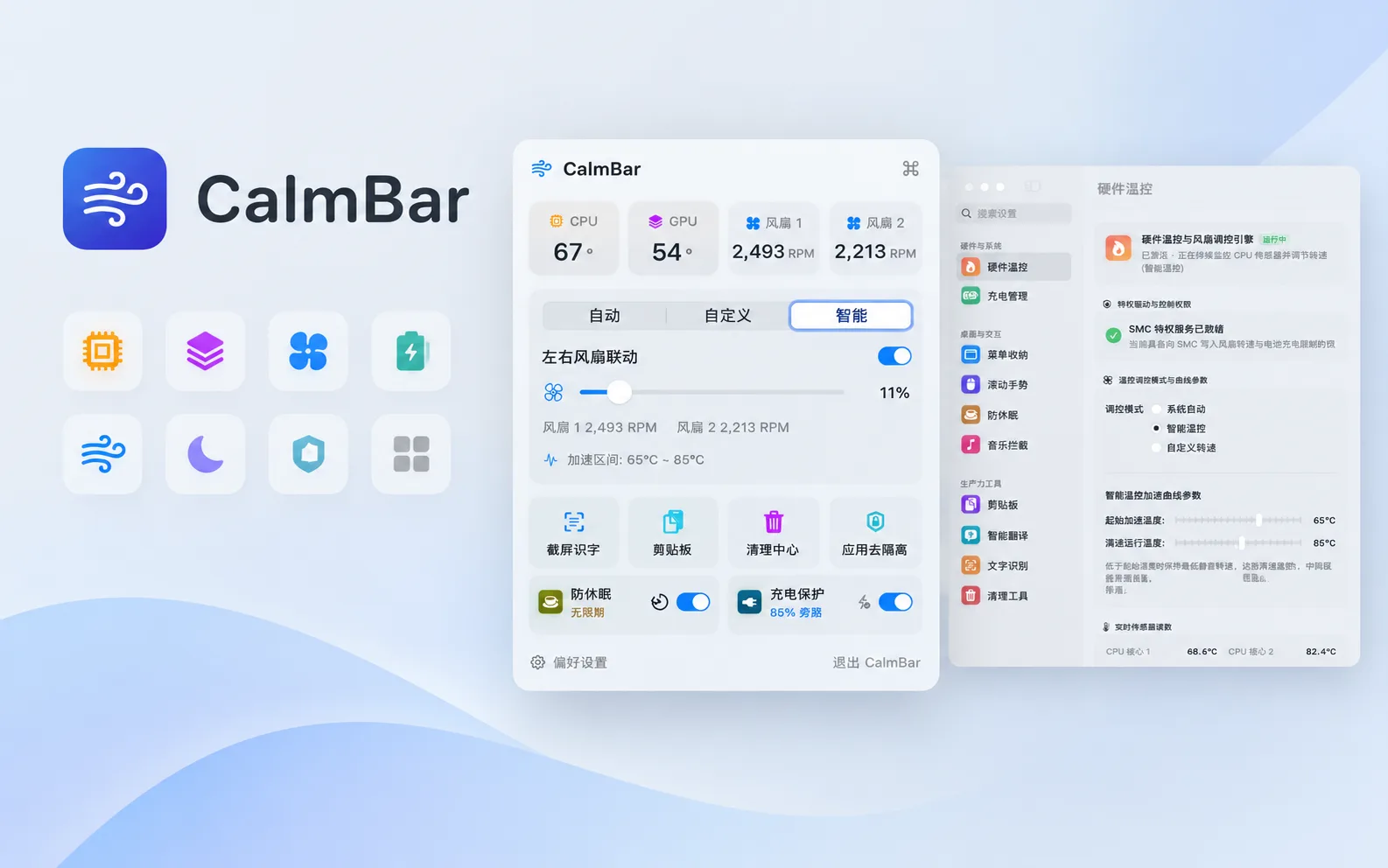
The panel
CalmBar sits in the menu bar. Click the icon and a fixed 320×520 panel drops down, split into five sections: thermal, guard, tools, monitor, sound. The window height is hard-coded, so switching sections only animates the content and the top edge stays put. That isn’t much of a feature, but for something you click a dozen times a day, a single jump is annoying enough. Modules you have not enabled do not appear in the panel, and neither does their section.
The current version is 2.6.1, released on November 4, 2026, build 4, and it runs on macOS 14.0 or later. The main app is Swift 6, the interface is SwiftUI and AppKit, and the only third-party dependency is Sparkle for updates. FeatureID in the code has fourteen cases. The sections below follow the groups they fall into.

Cooling and battery
Temperatures come from the SMC, covering the CPU core clusters, GPU, battery and SoC. Fans have three modes. Auto hands control back to the system, manual is a stepless slider that can lock either a percentage or an RPM, and the smart curve takes a start temperature and a full-speed temperature, interpolating in between. Dual-fan machines can move both fans together or tune each side separately. Quitting, restarting, sleeping and crashing all hand the SMC back to the official firmware, so you never end up with a fan pair locked by an outside program.
On a fanless machine CalmBar reads FNum first. If it comes back zero the whole module degrades to temperature monitoring only, and the speed slider, RPM readout and privileged helper entry disappear together. Finding nothing to tune is better than finding a slider that won’t move.
The charge limit can be set anywhere from 70% to 100%, 80% by default. It writes the SMC’s CH0C and CHTE registers, stops charging at the threshold and runs off the adapter. Hysteresis cruising lets the battery drop to the lower bound before topping up again, which avoids the constant micro-charging around 80%. Below 15%, or above 45 degrees cell temperature, the cutoff restores charging immediately. Before heading out you can hit top-up once, and it falls back to the set limit when full.
Input and everyday use
Menu bar organization changed in 2.6.1. Hover-to-expand used to fire whenever the pointer crossed any part of the menu bar. Now it only triggers within 16pt either side of the organizer arrow, after a 0.35 second pause. Hold ⌘ and drag low-frequency icons to the left of the / divider to hide them, and press ⌥⌘H to collapse.
Scroll decoupling works per device. An external mouse gets the Y axis reversed, while the built-in trackpad and Magic Mouse keep their native direction and inertia. The two sets of devices do not interfere with each other.
The clipboard records plain text, rich text, images, links, files and hex color values. Images go through Vision in the background, so the text and QR codes inside them land in the index and you can search the words in a screenshot. Anything copied out of a password manager is skipped. In keyboard mode, ← → cycles categories, ↑ ↓ picks an entry, and Enter copies it, after which the window closes itself.
The command palette is on ⌥⌘K. Chinese, English and pinyin initials all match, and Enter runs the command. It and the menu bar panel are mutually exclusive, so opening one dismisses the other.
Focus
Prevent-sleep uses an IOKit power assertion, either indefinitely or with a countdown from 5 minutes to 5 hours. Away prevention reads the idle time from IOHIDSystem and sends a slight HID nudge when it runs out, resetting the timer.
The limits deserve a sentence here. What it affects is the class of office apps that decide away status from system idle time, which includes Teams, Slack, Feishu and DingTalk. If the server has its own heartbeat or another detection method, you will still be marked away. The tool only does the part it can do.
Music interception listens for app launches and cuts off the automatic wake-up of Music and iTunes. You can point it at Spotify or NetEase Cloud Music instead, or configure a web player URL. That pop-up when Bluetooth headphones reconnect is mostly what this handles.
Text and translation
Screen OCR runs entirely locally on the Vision framework, recognizing mixed Chinese, English, Japanese and Korean, code, QR codes and barcodes together. The result goes straight to the clipboard once you finish selecting, and the history is searchable. This feature makes no network calls.
Translation is the only part of the project that sends a request outward. You supply the endpoint yourself, using the OpenAI-compatible /v1/chat/completions protocol. Running a local HY-MT2 works too, and there are deployment docs for Docker, NAS and MLX. Double-tap ⌘C or press ⌥⌘T and the translation streams in next to your cursor.
Version 2.6.1 changed the menu bar entry. It used to translate the clipboard the moment you clicked, which left you hunting for somewhere else to fix the source text. Now it opens an input panel, prefilled from the clipboard but not translated automatically. Edit it, then press ⌘↩ to send.
Sound and recording
Per-app volume arrived in 2.6.0 and requires macOS 14.4 or later. Older versions get a clear unsupported message. A single app can go up to 200%, with the cap configurable in settings. You can also route one app’s audio to a separate output device, and choose how many apps can be routed at once plus whether a disconnected device makes the app follow the system or pause. Protected audio — system alert sounds, incoming calls, phone calls — is never taken over.
Recording covers full screen, a region or a single window, in HEVC or H.264, at 24, 30 or 60 fps. System audio and microphone go into two separate tracks so you can adjust them independently later. A countdown can run before capture starts, and the control bar floats at the top of the screen without appearing in the recording. If the app crashes or the file fails to finalize, the temporary segments stay on disk and can be recovered into a playable video from settings. Without microphone permission it degrades to system audio only.
System maintenance
Cleanup scans more than twenty directories under ~/Library and /Library, matching leftovers by Bundle ID prefixes and name variants. Everything goes to the Trash, and you have to tick each item yourself — nothing is selected for you. Developer caches cover more than twenty-four toolchains: Xcode’s DerivedData, Archives and simulators, Node’s npm, pnpm, yarn and bun, Python’s pip, poetry, uv and conda, plus Rust, Go, Java and Flutter. Orphaned workspaces in VS Code and Cursor whose project source has been deleted can be cleared separately.
Launch item management handles the three launchd locations — user agents, global agents and system daemons. Apple’s core items under /System/Library are marked read-only. Three consecutive failures inside a five-minute window count as a crash loop, the main panel turns red, and a sixty-second debounce keeps it from repeating. Port inspection uses lsof to list current listeners and follows the PID to the command line and working directory, picking up Docker container names along the way.
The permission board puts accessibility, the privileged helper, screen recording and full disk access on one page, each labeled with the feature that uses it.
The monitor is a 2×2 set of cards for CPU, memory, network and disk, with threshold alerts and menu bar readouts. Alerts have priority downgrade and cooldown. Memory is measured in binary units, matching Activity Monitor, and disk free space includes purgeable space, matching the figure in System Settings. Both numbers used to disagree with the system, and were fixed.
Installation
The DMG is a universal build with arm64 and x86_64 combined, a little over 9 MB. The package is on the download section of calmbar.bujic.cc, and also on GitHub under Releases.
It is not notarized by Apple, and the signature is ad-hoc. From macOS Sequoia onward the file gets blocked while it is still sitting in your Downloads folder, and the dialog does not even offer an “Open Anyway”. Clear the quarantine flag first, then double-click.
xattr -dr com.apple.quarantine ~/Downloads/CalmBar-2.6.1.dmgDrag it into Applications, then run it once more against the app itself.
xattr -dr com.apple.quarantine /Applications/CalmBar.appAfter that, updates go through Sparkle from “General → About CalmBar → Check for Updates”, with no need to download the package again. On a restricted network you can configure an HTTP proxy in update settings. Sparkle’s download process cannot read the app’s configuration, so a loopback relay service that listens only on the local machine and checks a random token sits in between.
Limitations
- Per-app volume takeover needs macOS 14.4 or later. Below that you only get system-level volume.
- A fanless MacBook Air gets temperature monitoring, not fan control.
- The translation endpoint is yours to provide. The project ships no API key.
Shortcuts
⌥⌘Kcommand palette⌥⌘Hcollapse the menu bar⌥⌘Ttranslate the clipboard⌘Ctwice for translate-on-select⌥⌘Oscreen OCR⌥⌘Vclipboard history⌥⌘Rstart or stop recording⌥⌘Fopen the recording folder
The source is at github.com/chao-eng/CalmBar, under Apache 2.0. Where the details here disagree with the repository, doc/release/RELEASE.md is the authority.
Comments