
Mac Displays "App Is Damaged" When Installing Software
🛠️ The ultimate guide to fixing the macOS "App Is Damaged" or "Cannot Be Opened" error when installing software
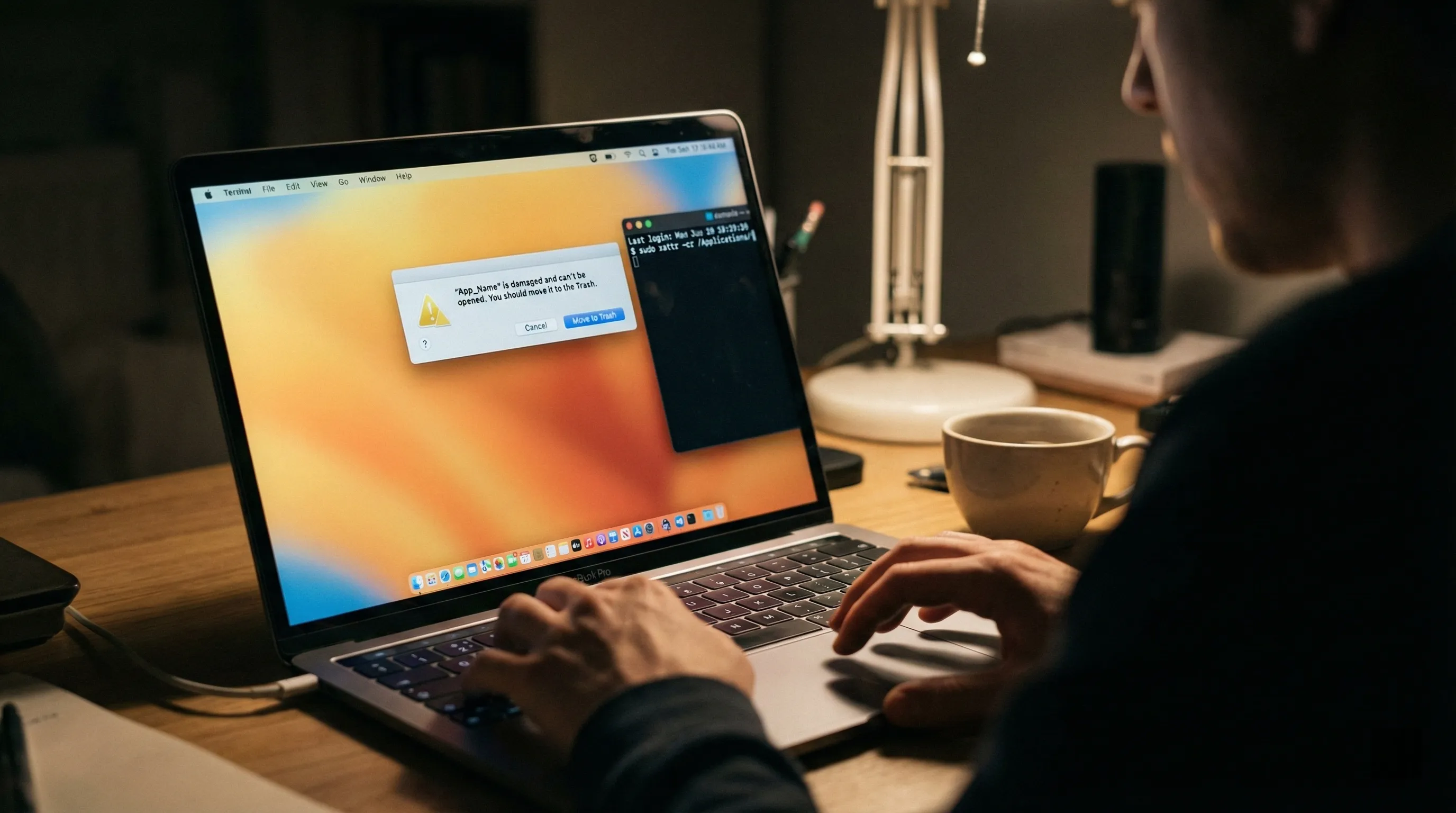
When you install third-party software on macOS from outside the App Store, you often run into these prompts:
“xxx.app is damaged and can’t be opened. You should move it to the Trash.”****“xxx.app can’t be opened because the developer cannot be verified.”
This usually doesn’t mean the software is actually broken. Rather, macOS’s security mechanism (Gatekeeper) has blocked an app whose signing certificate has expired. We can fix it by removing the file’s “quarantine attribute.”
🚀 The Core Fix: Clear the Quarantine Attribute
Follow these steps and fix it with Terminal.
Step 1: Open Terminal
On your Mac, open Launchpad -> Other -> Terminal.
Step 2: Type the Command (Don’t Press Enter Yet)
In the Terminal window, copy and paste the following command (note that there is a trailing space):
sudo xattr -rd com.apple.quarantineStep 3: Add the Path (the Key Trick)
Don’t type the software path by hand. Open Finder -> Applications, find the icon of the app that’s erroring (for example PicGo.app), and drag it directly into the Terminal window, after the command you just typed.
At this point the command shown in Terminal should look something like: sudo xattr -rd com.apple.quarantine /Applications/PicGo.app
Step 4: Run It and Enter Your Password
- Press Enter.
- Terminal will then prompt
Password:. - Enter your Mac login password (note: no asterisks or characters appear on screen while you type the password — that’s normal).
- After typing the password, press Enter again.
🔍 What the Command Actually Does
If you’re curious what this line of code does:
sudo: runs the command with superuser privileges (that’s why the password is needed).xattr: the tool for modifying a file’s extended attributes.-r: apply recursively, handling every file inside the app.-d: delete the attribute.com.apple.quarantine: the “quarantine” tag macOS puts on downloaded files. Delete it, and the system will consider the app safe.
✅ Verify the Result
Now click the app icon again — it should open normally!
Comments