
Free and Flawless! Run Genuine Steam Games Smoothly on M-Series Macs with Sikarugir
This guide is a complete set of ultimate tuning and pitfall-avoidance tips for running the Windows version of Steam and games perfectly on Mac Apple Silicon (M-series chips) via Sikarugir (Wine).
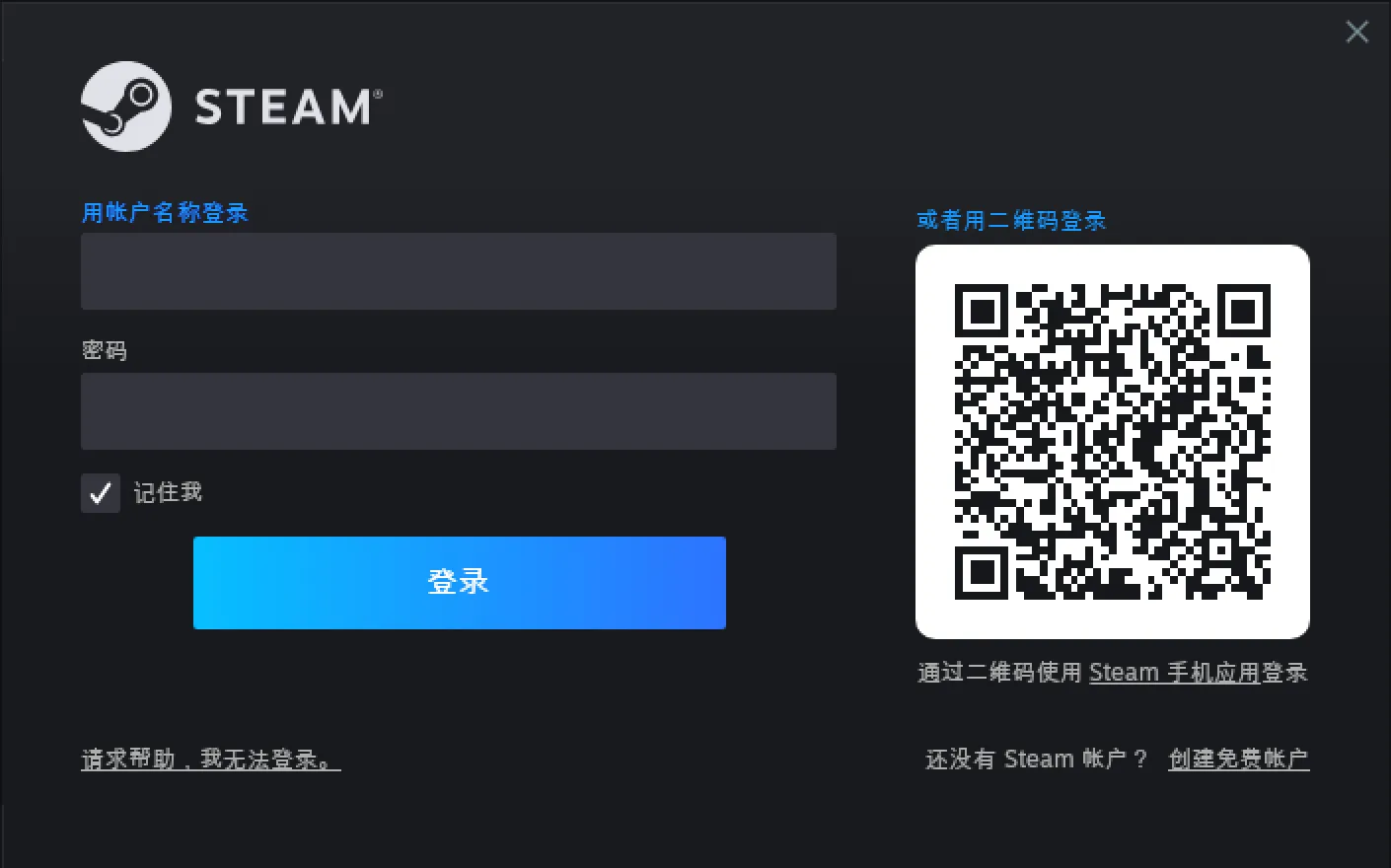
Sikarugir is a tool for running Windows applications and games in containers on macOS, built as a customized, deeply modified fork of Wineskin.
Its main features include:
- Out-of-the-box Wine containers: It packages a Windows application together with the runtime environment it needs (WINEPREFIX) into a double-clickable macOS
.app, sparing users the tedious work of configuring Wine manually in the terminal. - Native graphics rendering support: It integrates DXVK (a Vulkan translation layer) as well as Apple’s DXMT / D3DMetal (DirectX-to-Metal translation layers) optimized for Apple Silicon, letting Mac users run Windows games and software smoothly and efficiently with minimal overhead.
- Simplified bottle management: It ships with graphical management interfaces such as
Configure.appand Winetricks, making it easy to manage the virtual C: drive, edit the registry, configure launch arguments, and install common Windows runtimes and fonts.
1. Prerequisites
- macOS 14 or later
- brew
- git
2. Installing Sikarugir
See the official instructions on GitHub
# If you run into network issues during installation, enable a proxy
export http_proxy=http://127.0.0.1:7890
export https_proxy=http://127.0.0.1:7890

# Update existing dependencies
brew upgrade
# Trust the official repository
brew trust Sikarugir-App/sikarugir
# Install the app
brew install --cask Sikarugir-App/sikarugir/sikarugir

# Enable Rosetta
/usr/sbin/softwareupdate --install-rosetta --agree-to-license
3. Creating a Container
After Sikarugir is installed, a Sikarugir Creator.app appears in your Applications folder. Open it.
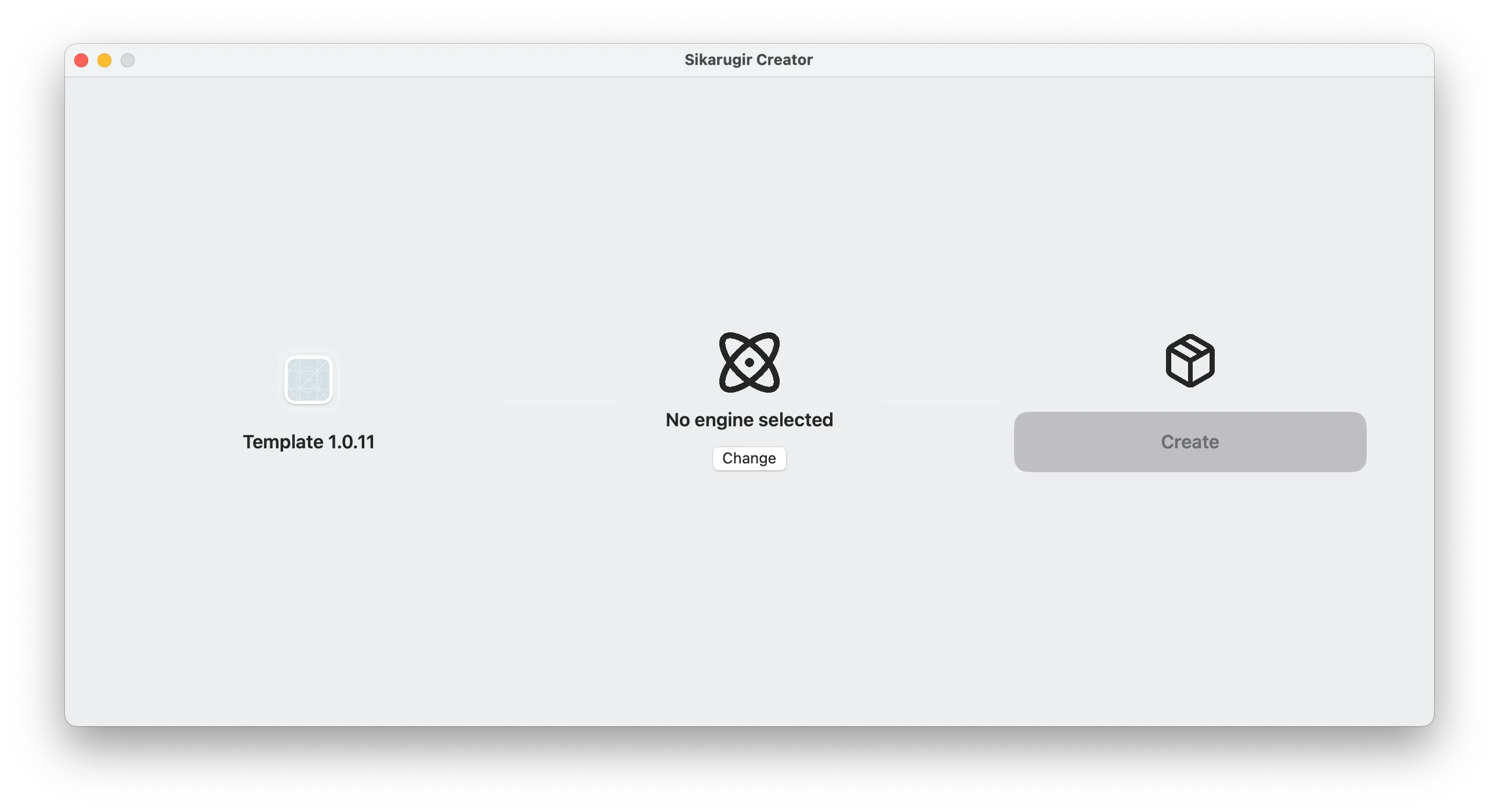 * Click Templates on the left and wait for the download
-
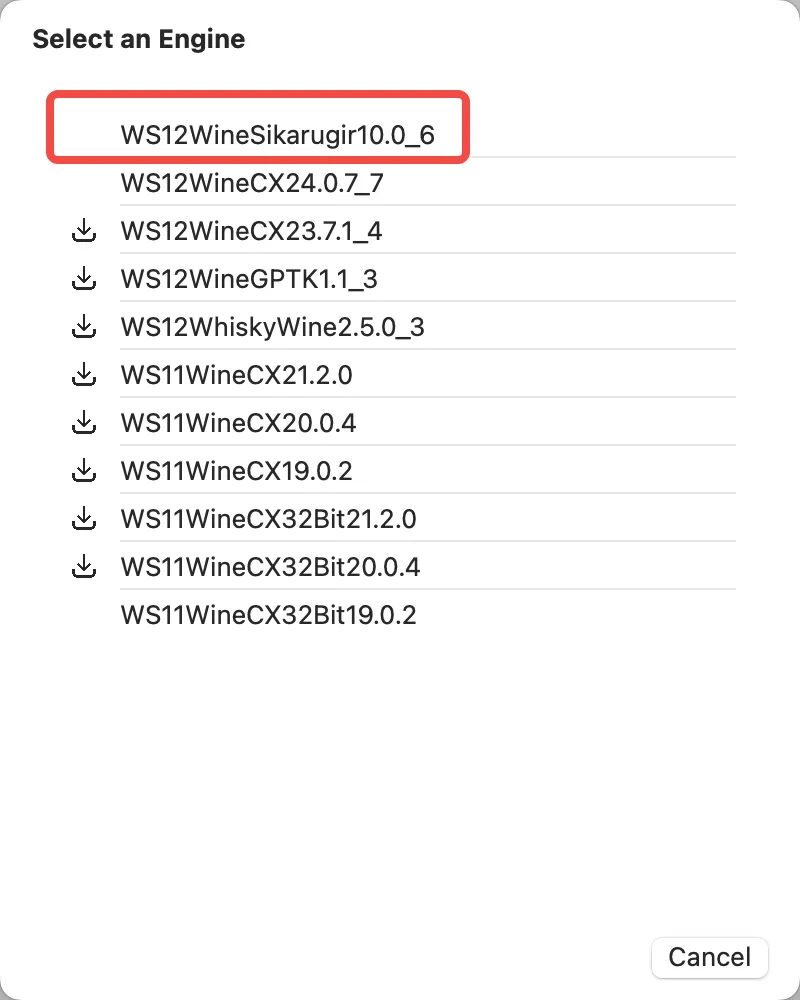
Click the engine in the middle and select WS12WineSikarugir10.0_6
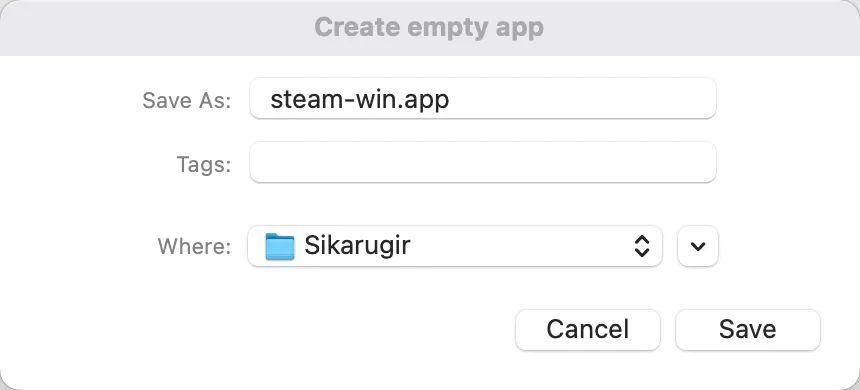
 * Once everything is ready, click the Create button on the right to start creating the container, and give it a name
 * After the container is created successfully, click Winetricks to install the required dependencies, checking each of the following:
apps
    steam
dlls
    d3dx11_42
    d3dx11_43
fonts
    fakechinese
Click the run button to download and install them automatically
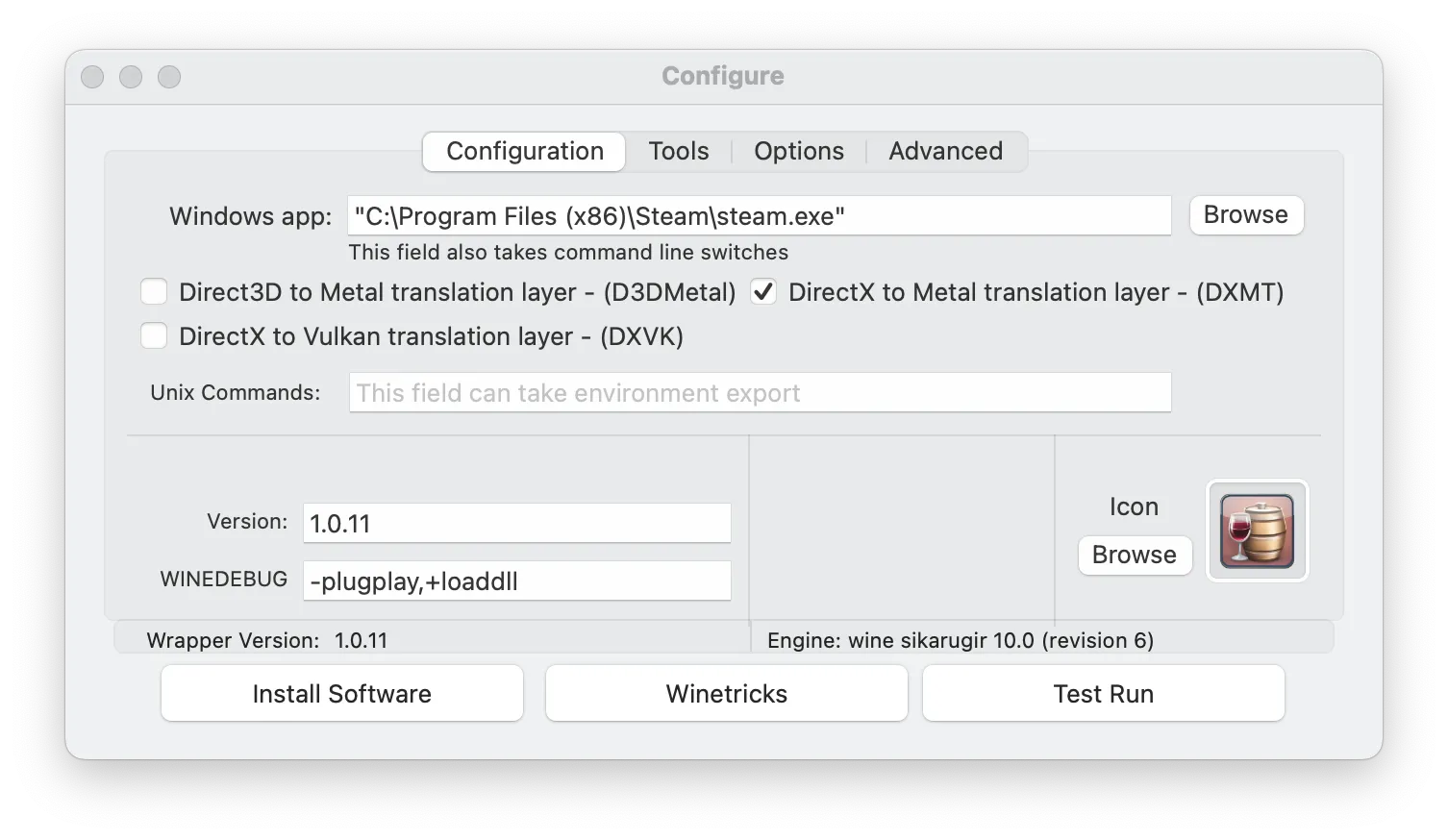
- When installation finishes, go back to the main configuration screen, click the Browser tab, set the path to the Steam installation directory, and enable DXMT
Comments