🔌 Connecting OpenClaw Browser Relay over the LAN
How to solve the problem of not being able to connect directly to Browser Relay when OpenClaw is deployed in a LAN environment and needs to reuse the local Chrome cookies and user identity information.
📖 Background
OpenClaw’s Browser Relay feature lets you control your local Chrome browser directly and reuse your existing cookie login sessions and identity information. It is a great fit for automated web operations, data scraping, testing, and similar scenarios.
But when OpenClaw is deployed in Docker on a LAN or on a remote server, a problem comes up: the browser extension runs on your local computer while the OpenClaw service runs on another machine, and the network cannot reach it, so a direct connection is impossible.
This article provides a complete solution that uses TCP port forwarding + an SSH tunnel to connect across machines on a LAN.
🏗️ Overall Architecture
Local Chrome browser <-> Browser Relay extension <-> SSH tunnel <-> LAN Docker/server <-> OpenClaw Browser Relay service
🛠️ Step 1: Install the OpenClaw Browser Relay Extension in the Browser
- Search for “OpenClaw Browser Relay” in the Chrome Web Store and install it, or install it from the official prompt.
- Once installed, an extension icon appears in the browser toolbar.
🚀 Step 2: Configure Port Forwarding (the Key Step)
Choose the configuration that matches your OpenClaw deployment:
Option A: Docker Compose deployment (recommended)
Add the TCP forwarding command and port mapping to your compose.yml:
services:
  openclaw:
    image: ghcr.io/openclaw/openclaw:latest
    # ... other configuration unchanged
    command:
      - sh
      - "-c"
      - |
        # Start the TCP Proxy (run in the background)
        node -e "const net=require('net');net.createServer(c=>{const p=net.connect(18792,'127.0.0.1');p.on('error',()=>{});c.on('error',()=>{});c.pipe(p).pipe(c);}).listen(18793,'0.0.0.0',()=>console.log('✅ TCP Proxy running'));" &

        exec node dist/index.js gateway --bind lan --port 18789
    ports:
      - "xxxx:xxxx" # ... other port mappings unchanged
      - "18792:18793"  # 👈 Add this line to forward container port 18793 to host port 18792
A quick explanation:
18792is the default listening port of the Browser Relay service- Inside the container, a simple Node.js TCP proxy exposes
127.0.0.1:18792on0.0.0.0:18793 - Then the Docker port mapping
18792:18793makes it reachable from the host
Option B: Local / bare-metal deployment
Skip straight to Step 3
🔌 Step 3: Set Up the SSH Tunnel Mapping
On your local computer, run this SSH command to map port 18792 on the LAN server to your machine:
ssh -L 18792:127.0.0.1:18792 username@LAN-server-IPParameter notes:
18792:<LAN-IP>:18792maps your local127.0.0.1:18792to port18792on the remote serverusername@LAN-server-IPis your SSH login account and address
As long as this SSH connection stays open, the tunnel stays up.
💡 If you want the tunnel to run in the background, add the
-fNflag:ssh -fN -L 18789:127.0.0.1:18789 username@LAN-server-IP
✅ Step 4: Configure the Extension Connection
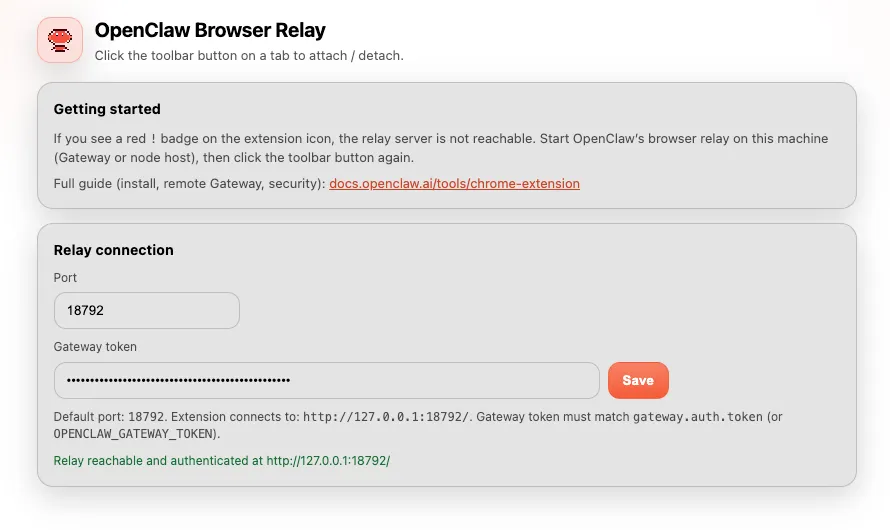
- Click the OpenClaw Browser Relay extension icon in the Chrome toolbar
- In the configuration page that opens, enter the Token (obtained from the OpenClaw backend)
- Click “Save”; the extension automatically connects to the locally mapped
127.0.0.1:18792 - On a successful connection, the extension icon badge turns green to indicate it is connected
🧪 Test the Connection
Back in OpenClaw, run the following command to test whether the connection works:
openclaw browser profilesYou should see output like:
chrome: running (1 tabs)
  port: 18792, color: #00AA00
🚑 Troubleshooting
Q1: The extension reports “connection failed” or “timeout”?
- Cause 1: firewall blocking. Check whether the OpenClaw server’s firewall allows port
18792. - Cause 2: the SSH tunnel was not established. Check whether the SSH connection works and whether the port mapping is correct.
- Cause 3: the Docker port mapping is written backwards. Make sure it is
18792:18793, not18793:18792.
Q2: OpenClaw shows the service is running but cannot get any tabs?
- Confirm that you clicked the icon to connect in the extension and the badge is green.
- Refresh the browser page and reconnect the extension.
Q3: The connection succeeds, but operating the browser throws an error?
- Check the Node.js version; OpenClaw requires Node.js 18+.
- Make sure the TCP proxy command was copied correctly with no missing characters.
🎯 Summary
With this setup you can:
- ✅ Deploy OpenClaw on Docker/remote servers and still use your local Chrome
- ✅ Fully reuse browser cookies and login sessions with no repeated logins
- ✅ Rely on the SSH tunnel’s encrypted transport for security and reliability
- ✅ Configure it simply, with just a few commands
Enjoy the convenience of Browser Relay! 🚀
Comments